
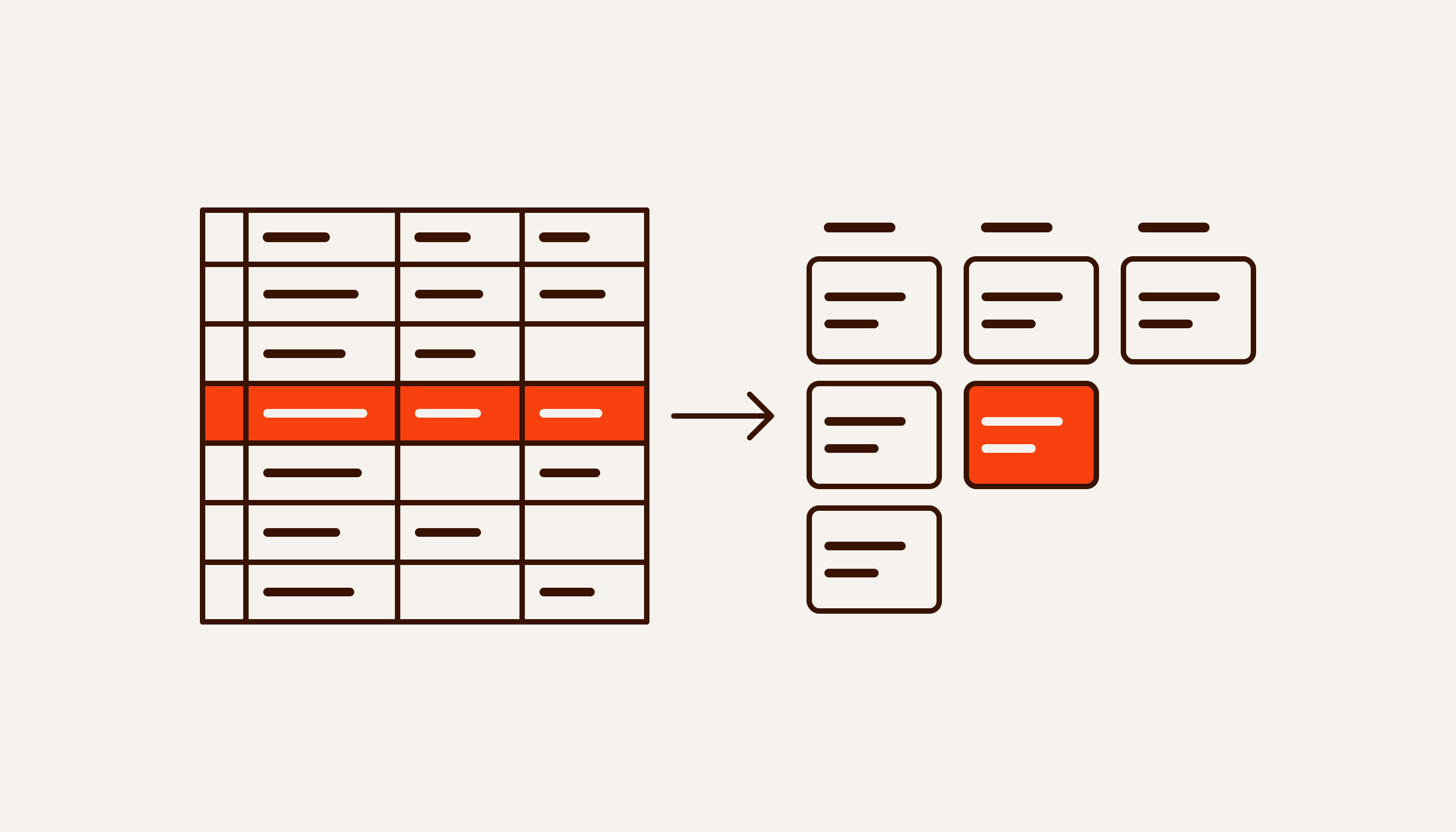
Google Sheets works as a CRM for a small business as long as one or two people handle the leads. The sheet will not remind anyone to call, will not keep the conversation, and cannot hide one rep’s customers from another. A few habits and a short script cover part of that. The rest cannot be covered at all. If you are looking for a Google Sheets CRM template, the whole thing is below: tabs, columns, dropdowns and the highlighting formula.
The limits below come from Google’s documentation as of 28 September 2026, and Google says its Apps Script quotas can change without notice.
Is Google Sheets a CRM tool?
No. A spreadsheet stores rows; a CRM is built around the work with a customer. But a CRM is mostly a set of habits: every lead is logged, it has an owner and a dated next step, and the manager can see what is stuck. Software helps you keep those habits. A spreadsheet helps less, but it does help.
| What you need from a CRM | Sheets on its own | How to cover it |
|---|---|---|
| A list of leads and customers | Yes | The Leads and Customers tabs |
| Status and next step | Yes | Dropdowns and a next-step date |
| Follow-up reminders | No | Overdue highlighting plus a scripted morning digest |
| Leads from your website | No | Google Forms or an Apps Script web app |
| Conversation history | No | Not covered: messages stay in the messenger |
| Each rep sees only their own leads | No | Not covered: access is granted to the whole file |
| Call log | No | Not covered without telephony |
A spreadsheet CRM is enough when the same one or two people take leads and see them through to the sale. Reviewing the list in the morning should take minutes, customers write through one or two channels, and nobody argues over whose client it is.
Lead tracking in Excel works the same way, and the structure below carries over unchanged. The main difference is automation: the scripts below are written in Apps Script and only work with Google Sheets.
A Google Sheets CRM template: three tabs
The Leads tab. One row per enquiry. The column letters matter: the formula and the script below refer to them.
| Column | What goes in | Why |
|---|---|---|
| A. Date | The date of the enquiry, not “yesterday” | To see how long the lead waited |
| B. Customer | Name and phone in one format, with the country code | To spot repeat enquiries and duplicates |
| C. Source | From a list: website, Telegram, Instagram, call, referral | To see which channel brings customers |
| D. Request | What they want, in one line | So nobody rereads the chat before calling |
| E. Status | From a list: new, in progress, quote sent, payment, won, lost | To see the pipeline |
| F. Next step | A verb: call, send quote, chase payment | A lead without a next step gets lost |
| G. Next-step date | A date | For overdue highlighting and the morning digest |
| H. Owner | From a list | Who is responsible |
| I. Amount | A number, no “k” or currency sign in the cell | To total the pipeline |
| J. Loss reason | From a list | A month later you can see why you lose |
The Customers tab. One row per customer: phone, name, company, date of first enquiry, number of enquiries. The count is a formula over the Leads tab. A repeat enquiry is a new row in Leads; the customer stays the same.
The Lists tab. Statuses, sources, owners and loss reasons, each in its own column. Change a list here and every dropdown picks it up.
The one rule of the template: every lead that is not won or lost has a Next step and a Next-step date. In a CRM this is called a task. Without it, the spreadsheet turns into an archive.
How to build it, step by step
- Set the column types. The easiest way is to select columns A–J and choose Format → Convert to table. Each column gets a type: date, dropdown, checkbox. If someone types text into a date column, a warning appears (Google help). If a script will be adding leads (more on that below), send a test lead and check that the new row lands inside the table.
- Build dropdowns from the Lists tab. Data → Data validation → Add rule → “Dropdown from a range”, pointing at a column on the Lists tab. Sheets rejects anything not on the list; you can relax that to a warning (help).
- Set your locale and time zone. File → Settings. They control the default date, number and currency formats (help).
- Highlight what is overdue. Select A2:J, open Format → Conditional formatting and pick “Custom formula is” (help). This formula colours a row when the next-step date has passed and the lead is still open:
=AND($G2<>"",$G2<TODAY(),$E2<>"won",$E2<>"lost")In locales that use a decimal comma, separate the arguments with semicolons instead. - Give each rep their own view. A regular filter is visible to everyone who opens the sheet, and every editor can change it. A saved filter view (“my open leads, by next-step date”) does not touch anyone else’s view (help).
- Build a summary on a separate tab. For example, the number of won leads from Telegram:
=COUNTIFS(Leads!C:C,"Telegram",Leads!E:E,"won")A handful of these cells gives you a simple pipeline by source and status. - Protect the lists and headers. Data → Protect sheets and ranges. This guards against accidental edits, not leaks: Google says protection “shouldn’t be used as a security measure”, because people can still copy and export a protected spreadsheet (help).
Automation without a developer: website leads and a Telegram digest
“Without a developer” here means no server and no subscription. You will still need to paste a few dozen lines of code.
The simplest way to collect leads is Google Forms: responses can be saved straight into a spreadsheet (help). If the form has to live on your own website, you need an Apps Script receiver.
A website lead becomes a row
Open the editor from the spreadsheet itself: Extensions → Apps Script. The doPost function runs when the web app’s address receives a POST request, and the request body is in e.postData.contents (Apps Script docs).
Then deploy the script as a web app: Deploy → New deployment, type Web app. Execute as you; give access to anyone, including people not signed in to Google. In the manifest that value is ANYONE_ANONYMOUS (docs); without it, a form on your site will not get through. The flip side: the address is visible in your page’s code, and anyone who finds it can write to the sheet. That is why the script above at least checks for a phone number.
Every code change needs a new version, created and selected under Manage deployments. Otherwise the same address keeps serving the old code (docs).
Here is an easy catch to miss. If your site sends the lead with Content-Type: application/json, the browser first sends an OPTIONS preflight request. The documentation describes only two handlers for an Apps Script web app, doGet and doPost, so there is nothing to answer OPTIONS with. The fix is to send the same JSON as text/plain. Browsers send those without a preflight (MDN), and doPost reads them from e.postData.contents just the same.
A morning digest in Telegram
- Create a bot with @BotFather and get its token.
- Message the bot yourself: a bot cannot start a conversation (Telegram). Find your chat ID with the getUpdates method.
- Put the token and chat ID into script properties: Project Settings → Script Properties (docs). They do not belong in the code.
Run setup once by hand, with your own time zone in place of Tashkent. Three caveats. A “9 AM” trigger fires at some point between 9 and 10 and then keeps that time (triggers). It runs under the account of whoever created it: if that person leaves the company, recreate the trigger from another account, or the digest may stop arriving. A Telegram message is capped at 4,096 characters, so a long list gets cut (sendMessage).
You can also keep a status history with a script. A simple onEdit trigger can write to a separate tab when a status changed and to what: the event carries the previous value when a single cell was edited (docs). But onEdit does not fire for rows added by a script (restrictions), and the built-in cell edit history does not show added or deleted rows (help). Neither adds up to a proper activity log.
The real limits, according to Google
Size. One spreadsheet holds up to 20 million cells or 100 MB (Google Drive help). The Russian version of the same page, as of 28 September 2026, still says 10 million; the translation apparently lags behind. A small business tracking leads will struggle to hit this ceiling. People hit other limits first.
Scripts. According to the Apps Script quotas page (last updated 3 September 2026):
- a single script run can last at most 6 minutes;
- all triggers together get 90 minutes of runtime a day on a gmail.com account and 6 hours on Google Workspace;
- no more than 20 triggers per user per script;
- outgoing requests, such as calls to Telegram: 20,000 a day on gmail.com, 100,000 on Workspace;
- email from scripts: 100 recipients a day on gmail.com, 1,500 on Workspace.
Quotas are per user and reset 24 hours after the first request. Google states plainly that any of them can be removed, reduced or changed at any time without notice. A once-a-day digest is nowhere near these limits. Scripts that scan a large sheet every minute are what run into them.
What is missing entirely. These are not quotas but the nature of a spreadsheet.
- Tasks with reminders. The next-step date and the highlighting only work if someone opens the file.
- Row-level permissions. A role (viewer, commenter or editor) applies to the whole file. Protected ranges limit editing, not viewing. By default every role can download the file; the owner can turn that off for viewers and commenters, but not for editors (Google Drive help). A rep who leaves can take a copy of the database.
- A call and message log. Calls and messages stay on the phone and in the messenger. The sheet only gets what someone bothered to copy in.
Six signs it is time to switch to a CRM
None of them is about data volume. A spreadsheet stops coping with people long before it stops coping with cells.
- A third salesperson joins. Each needs their own view, their own reminders and a rule for who gets the next lead. In a spreadsheet these are verbal agreements; in a CRM they are settings.
- Follow-ups slip. The date is there, the row is highlighted, but nobody opened the sheet that day. A CRM assigns the task to a specific person and keeps showing it until it is closed.
- People argue over whose client it is. The same phone number sits in two rows under two reps. In a CRM the owner is a field on the record, and a routing rule settles it instead of memory.
- You need the conversation history. Customers write on Telegram, Instagram and WhatsApp, and before a call the rep scrolls through three apps. In a CRM with those channels connected, the conversation sits on the customer record.
- You need to know your response time. Time to first reply gets logged by hand, which means it does not get logged. Why the number matters and what is actually known about it is covered in How long a lead lives. How to answer a lead straight away and hand it to a rep as a ready card is described on the AI sales automation page.
- Reports are assembled by hand. If someone pulls the numbers together from the sheet every Friday, you are already paying for tracking — just with that person’s time instead of a CRM. How to build that report without the manual work is in our article on report automation.
One sign alone is not a reason to move. Two or three at once are.
Moving from the spreadsheet to a CRM without losing history
- Pick a cut-over day. Before it, leads go to the sheet; after it, only to the CRM. Run both in parallel and they drift apart quickly.
- Clean the data. First bring phone numbers to one format, then remove duplicates: Data → Data cleanup → Remove duplicates (help). The order matters: “+998 90…” and “90…” are not duplicates as far as Sheets is concerned.
- Map columns to CRM fields. Status becomes a pipeline stage, owner becomes the responsible user, source and loss reason become fields on the record. Anything that does not fit a field, merge into one “History from the sheet” column and import it into a text field on the deal.
- Import in the right order. A tab downloads as CSV or XLSX via File → Download. Bitrix24 imports CSV and links deals to contacts and companies by exact name matches, so the order is companies, then contacts, then deals. When uploading, check the “column separator” setting: it has to match the character used in your file, or the fields will not be recognised (Bitrix24 help, in Russian). amoCRM’s own PDF guide from 2022 lists xls, xlsx, ods and csv files of up to 2 MB, 100 columns and 10,000 rows; a larger base is imported in parts (amoCRM guide, PDF in Russian).
- Start with a test file. Import a dozen rows, check the records by eye, then import the rest.
- Switch the inputs. The website form, the
doPostscript, the Google Form — everything that wrote to the sheet must now write to the CRM. Otherwise, a week later, new leads end up in the old file. - Archive the spreadsheet. Leave everyone except the owner with view-only access.
If you would rather hand the move to a contractor, this is what our CRM implementation looks like: first a review of the process, then amoCRM or Bitrix24 set up around it.
Where we stand, honestly
Leads from this website land in a Google Sheet. The form sends them to an Apps Script web app, which writes a row and gives the lead a priority from 0 to 100. The request goes out as text/plain, for the OPTIONS reason described above. We get few leads from the site so far, and a spreadsheet handles them fine.
Valli, our AI auto-responder for Telegram (currently in pilot), can pull a product catalogue from the owner’s Google Sheet: every 6 hours, through a link with view access. If the catalogue is edited inside the bot, the next sync overwrites the edit. The sheet stays the source of truth.
We do not sell an off-the-shelf CRM. For CRM projects we implement amoCRM and Bitrix24, and the client pays the vendor for licences directly. Our own products do keep customer lists: Valli tracks each conversation from new customer to purchase or refusal, and CorpVisor tracks orders, payments and debts at a manufacturing company in Samarkand. But these are parts of bots built around a specific process, not a replacement for a general-purpose CRM. We have no measurements of how moving from a spreadsheet to a CRM changes sales, which is why there are no figures of ours in this article.
If you are not sure whether a spreadsheet is still enough or it is time for a CRM, describe your process in the form on the home page or message us on Telegram. We review one process within 48 hours, free of charge.